A complete user guide. For concepts, see Introduction.
Account
Section titled “Account”Sign up and sign in
Section titled “Sign up and sign in”Register at eastagiletracker.com/signup with email and a password, or continue with GitHub or Google if you prefer OAuth. Sign-up is guarded by a reCAPTCHA and an SMS challenge, and the challenge works the other way round from most: we show you a code and a phone number, you text that code to that number from your own phone, and you’re signed in the moment it arrives. There is no phone-number field to fill in, and no email-verification step.
If you’ve been invited to a project or an organization, follow the link in the invitation email — your account is created (or you sign in) and you land directly on the matching board.
On the sign-in page, Remember me keeps you signed in across browser restarts; leave it off on a shared machine and the session ends when the browser closes. If you’ve added a passkey, Sign in with a passkey skips the password entirely. If two-factor is on, the code prompt also accepts one of your recovery codes.
Forgot your password? Use Forgot Password on the sign-in page; we email a reset link.
Account settings
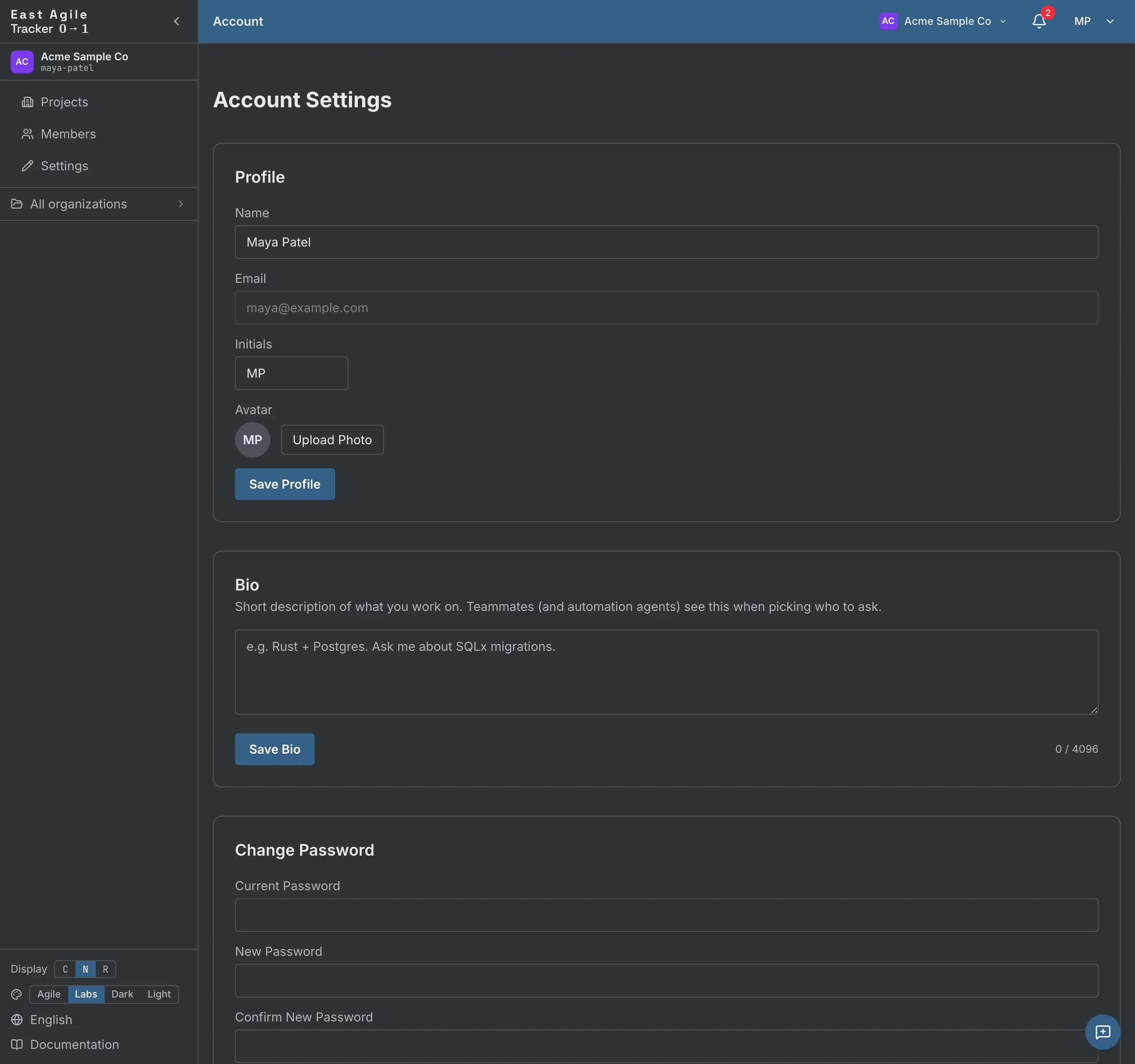
Section titled “Account settings”From the avatar in the top right → Account Settings. The page is one tab strip, and every tab is its own address you can bookmark:
- Profile — Display name and initials (up to 3 characters, used in owner avatars). Your email is shown but read-only. The same tab carries your Avatar (upload an image, or fall back to your initials), your Bio (a short self-description, up to 4 KiB; it appears on org members listings so an agent, or a teammate, can pick the right person to ask — leave it blank to opt out), your Theme (Labs, Agile, Dark, or Light, also switchable from the sidebar), your Cookies & Analytics consent choices, and Delete Account — a type-to-confirm step that removes you from every organization and project. Deletion is refused while you are the sole owner of an organization, or of a project that still has other members — transfer ownership first. Organizations and projects where you were the only member are permanently deleted with the account.
- Security — Your password, two-factor and passkeys; see Security below.
- Connected accounts — The GitHub and Google accounts you can sign in with, and the email addresses your account answers to.
- Notifications — Two matrices, in-app and email, one row per event category. Turn any of them off.
- API Keys — Create personal API tokens; see API Guide. The MCP clients and OAuth apps you’ve authorized are listed on the same tab; revoke any of them there.
- Billing — Your plan and payment details, when billing is enabled for your installation.
Security
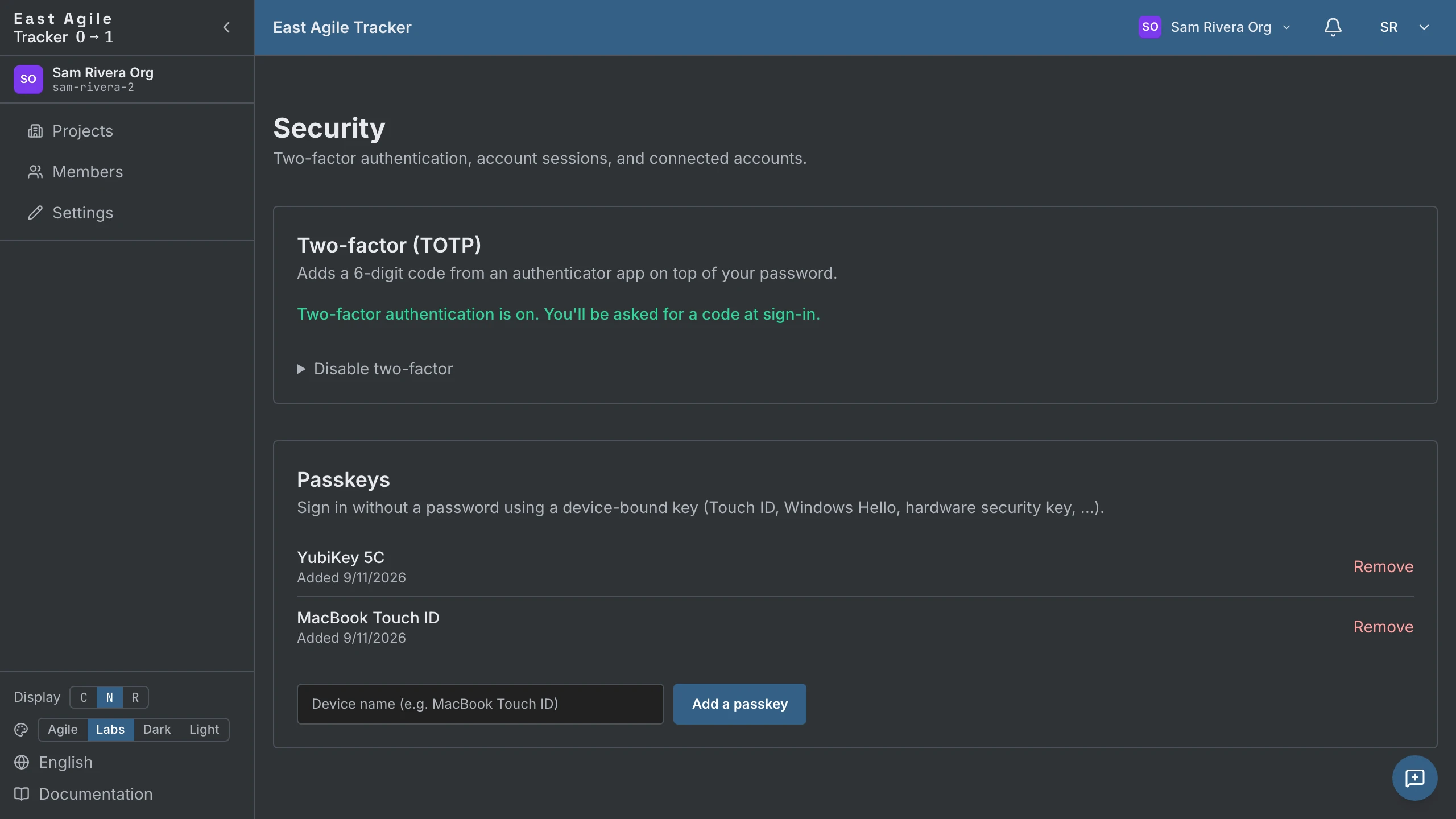
Section titled “Security”From Account Settings → Security:
- Password — Change it any time.
- Two-factor (TOTP) — Set up a code from any authenticator app (1Password, Authy, Google Authenticator, …). Get 10 one-shot recovery codes — they’re shown once, so save them. Disable later with either a current code or a recovery code.
- Passkeys — Add a device-bound WebAuthn passkey (Touch ID, Windows Hello, hardware security key). Sign in passwordlessly afterwards. Add, name, and remove keys from the same page.
Sessions and refresh tokens
Section titled “Sessions and refresh tokens”A successful sign-in mints two tokens: a short-lived access JWT and a long-lived refresh token (30 days, rotated on every use). The SPA refreshes the access token automatically when it expires; you stay signed in until the refresh token expires or you sign out. Sign-out revokes the refresh token server-side, so a stolen copy can’t be replayed.
Organizations
Section titled “Organizations”Every account belongs to one or more organizations. A fresh sign-up gets a personal org (“<Name> Org”), created automatically. Projects live inside orgs, and org membership gates project membership.
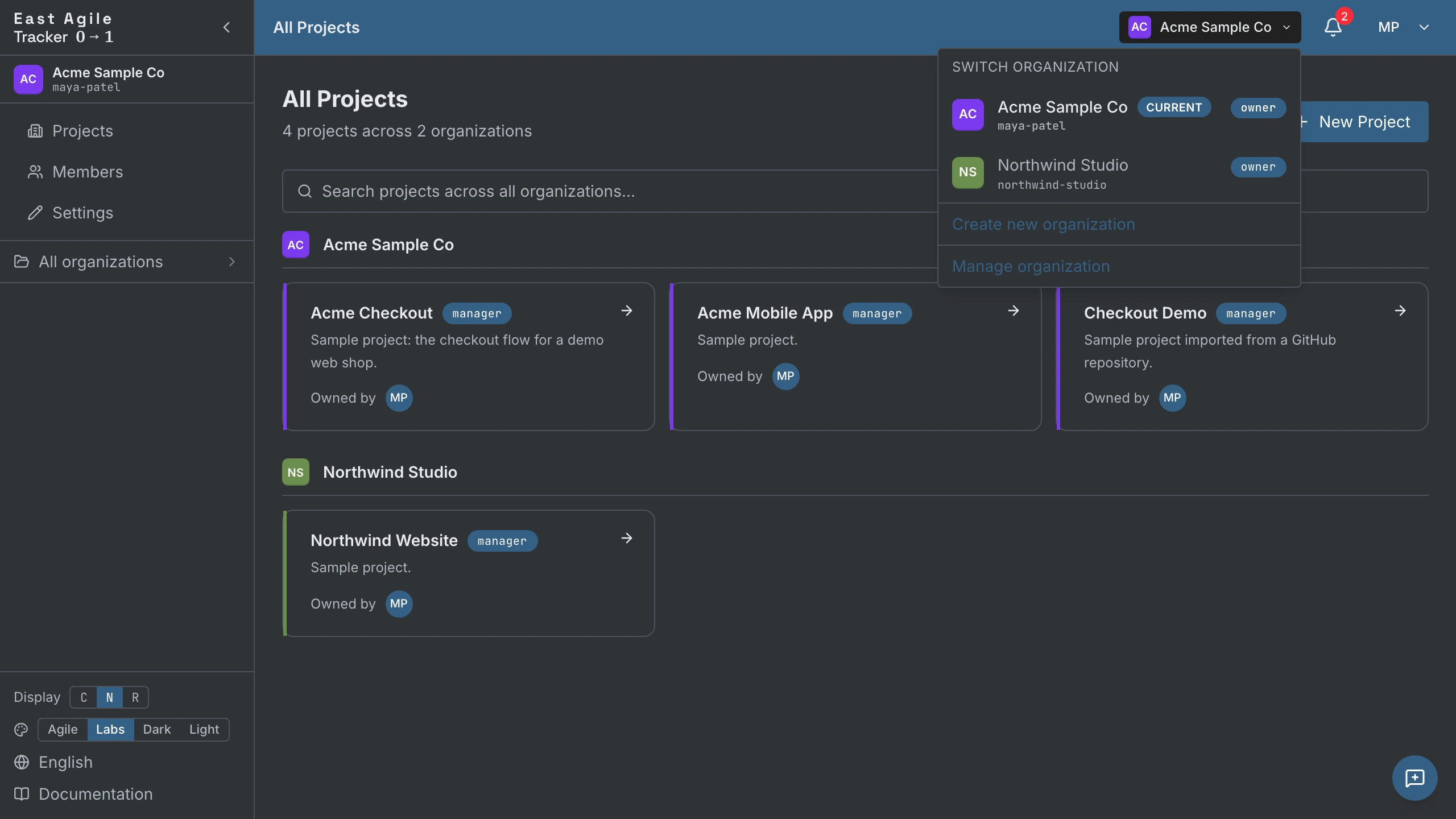
Switch organization
Section titled “Switch organization”Click the org switcher in the topbar to flip between orgs you belong to. The active org scopes the “Projects” list and pre-selects when you create a new project.
Manage an organization (admin)
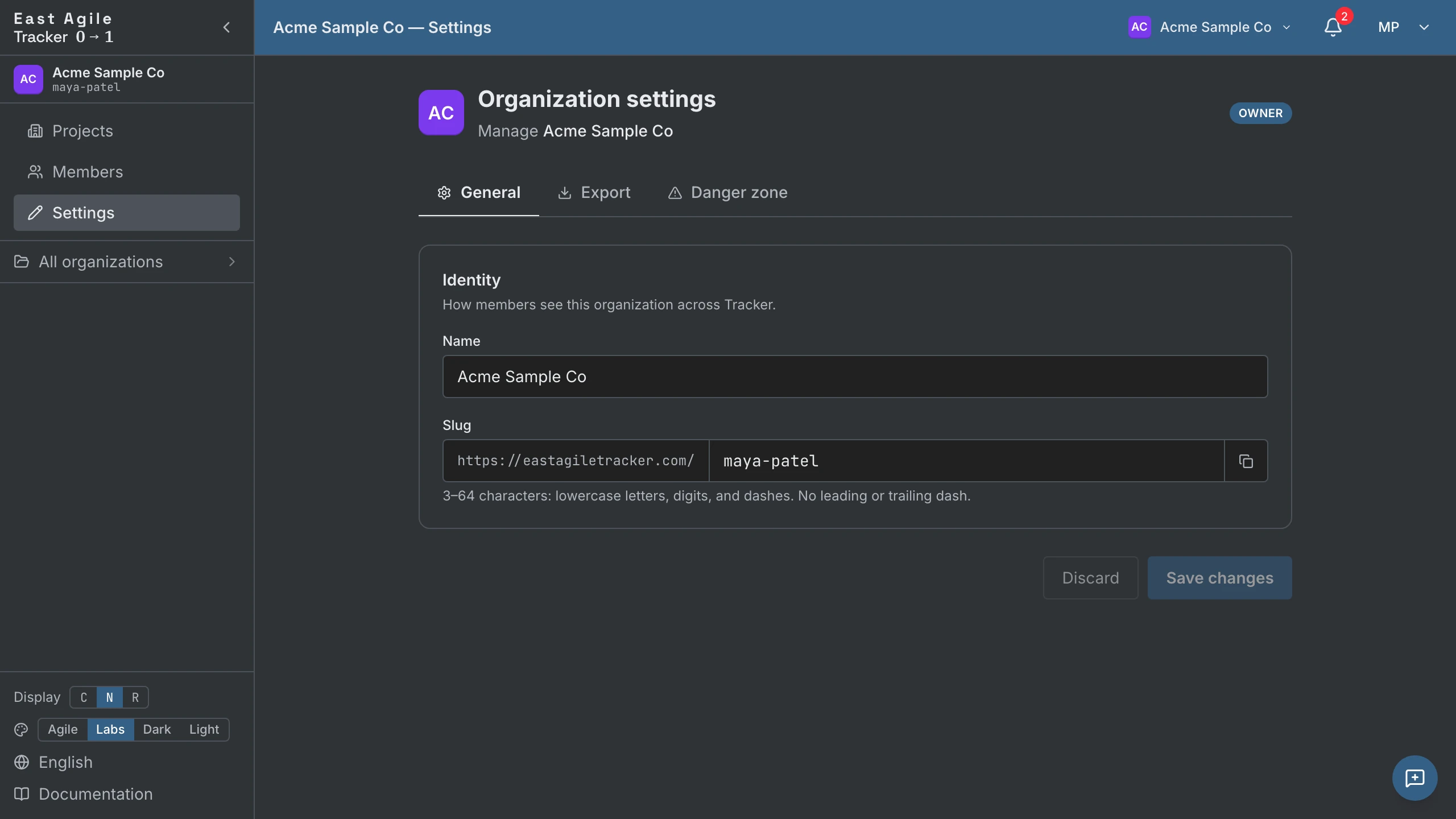
Section titled “Manage an organization (admin)”Click the org block in the sidebar → Manage organization → you land on /organization/{id}/projects. The sidebar surfaces the admin pages:
- Projects — All projects in this org.
- Members — Current members, roles, and pending invitations. Admins and owners invite by email; the invite is email-pinned with a TTL token, and nobody can invite a role above their own — the owner role is never invited, it is transferred. Transfer ownership to another member from this page.
- Settings (owners and admins) — Org name and slug.
- Export (owners only) — Download the whole organization as a zip: a SQL dump plus every attachment.
- Backup — Point-in-time backups of the organization and restore.
- Danger zone — Delete the organization.
Remove a member
Section titled “Remove a member”Removing a member from an org cascades: their per-project memberships in that org’s projects are revoked in the same transaction. Bookmarked board URLs stop working the moment they lose org access — there’s no orphan trail.
Projects
Section titled “Projects”Create a project
Section titled “Create a project”From the Projects page, click New Project. The create form asks for three things:
- Project Name — Required.
- Description — Optional; visible to all members.
- Organization — Required; which org the project belongs to.
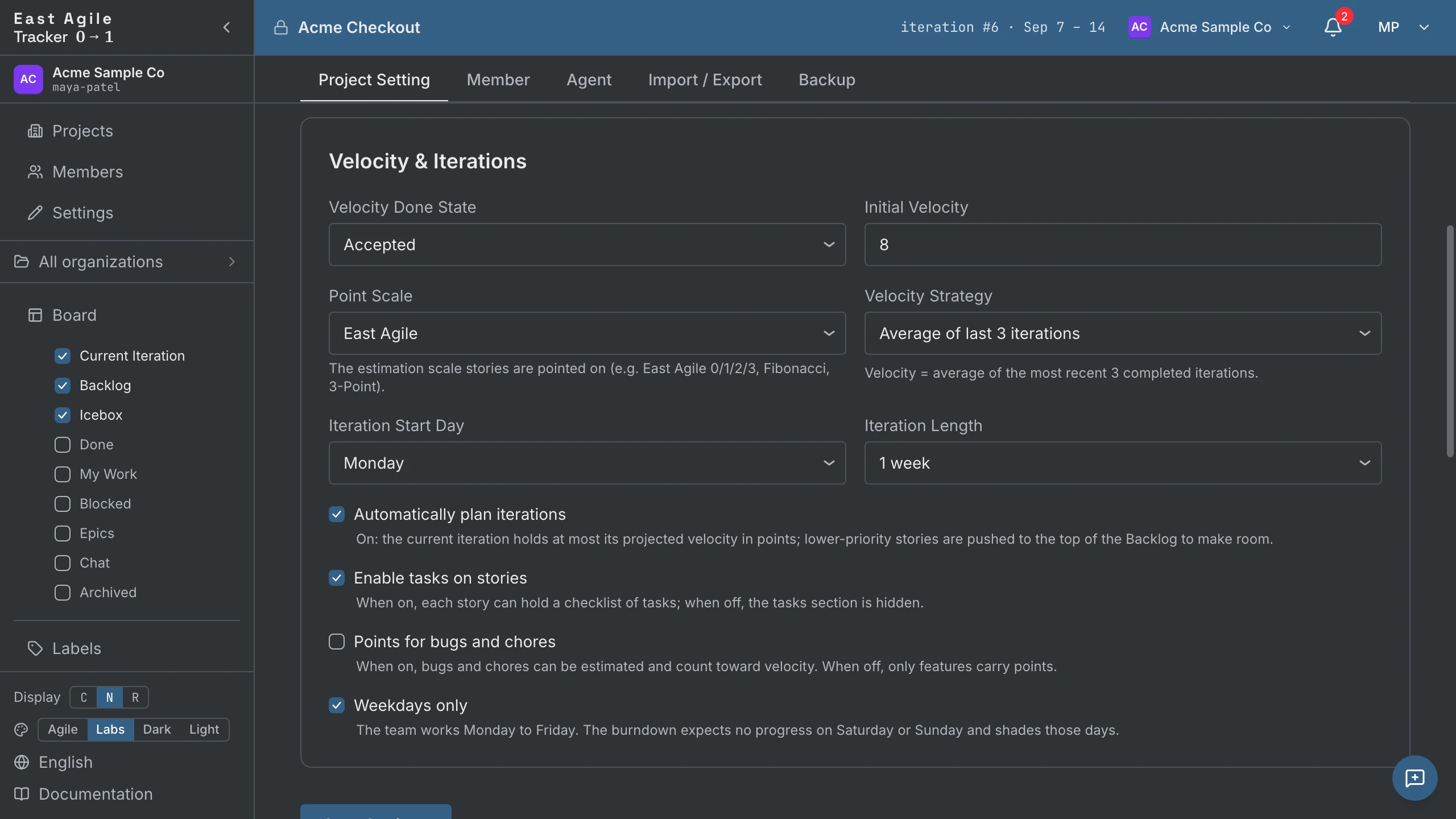
Everything else — iteration length, start day, initial velocity, estimate scale, done state, task toggle — is set later in Project Settings and is seeded with sensible defaults.
Project settings
Section titled “Project settings”Under the project’s Settings menu, five tabs:
- Project — Edit title, description, iteration length and start day, velocity strategy (average of last 3 / 5 / 10, or a manual value), done state, estimate scale, Points for bugs and chores, Weekdays only (skip weekends in burndowns), task toggle, and the auto-plan iterations toggle under Velocity & Iterations (on by default — see Planning an iteration, below). The same tab holds Visibility (make the project public), the Slack feed, Transfer to another organization, and Delete project.
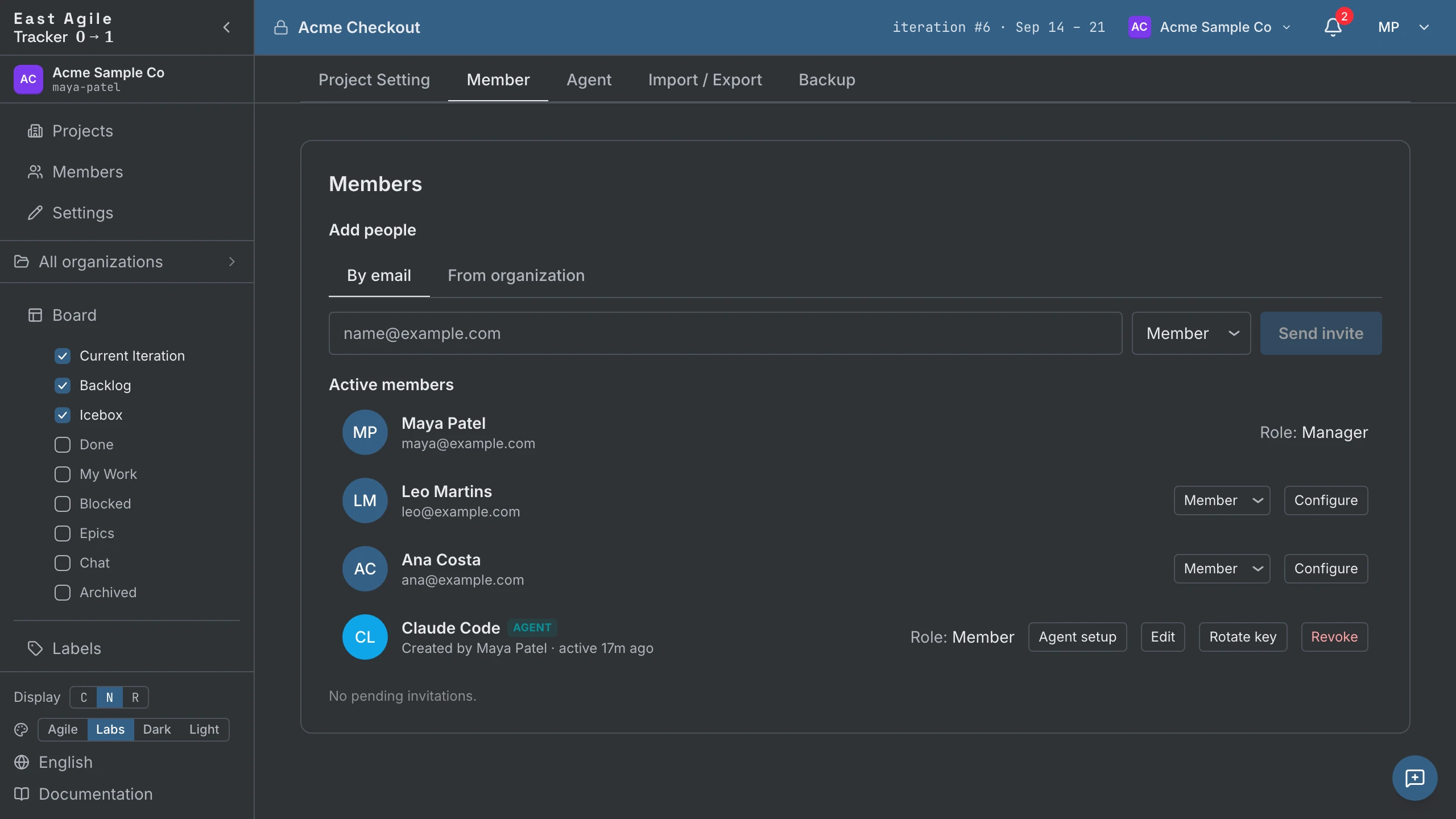
- Member — Invite, promote/demote, and remove human members (see Members and invitations, below).
- Agent — Mint agent API keys for this project and set who may mint them (see Agents, below).
- Import / Export — Bring stories in from another tracker, or export the whole project (see Importing from other trackers and Exporting a project, below).
- Backup — Automatic point-in-time backups of the project, and one-click restore. Manager-only.
Members and invitations
Section titled “Members and invitations”In the Member tab of Project Settings, invite humans by email, or add someone who is already in the organization with From organization — no email round-trip. Pending invitations sit in a separate bucket until accepted; you see who’s invited and can revoke. Active members can be promoted/demoted between viewer, member, and manager. Managers can change project settings; viewers can read but not write. Former members stay listed below the roster so their history stays attributable.
Project history is on its own page — every change to project settings, every membership change, with the actor (human or agent).
Stories
Section titled “Stories”Create a story
Section titled “Create a story”Use the + Add story affordance on the Current, Backlog, or Icebox panel. It opens a full composer: title, description, type, priority, estimate, labels, owners, blockers, links, tasks, reviewers, and whether you follow the story. Press Cmd/Ctrl+Enter to save, or click Add.

New stories created in Current default to current_state = 'unstarted'. That’s PT parity: a Current iteration is a plan of work, not a partition by state. The owner explicitly Starts the story when they begin the work — the clock doesn’t kick off until then.
Required: title. Pick a type (defaults to feature). Everything else can be filled in later from the detail panel.
Estimate features
Section titled “Estimate features”Features are the only type that takes points, unless Points for bugs and chores is on in Project Settings. Click the points circle on a card (or in the detail panel) and pick from the scale. Unestimated features show a blank circle.
- Fibonacci scale — 0, 1, 2, 3, 5, 8, 13. Standard XP.
- East Agile scale — 0, 1, 2, 3. Tighter. A 3 means a full iteration of one person’s time. Nothing fits past 3.
- 3-Point scale — 1, 2, 3 (Small / Medium / Large). Strict t-shirt sizing — no zero option, no half-points.
Pick the scale once in Project Settings. You can change it later, but existing estimates are not remapped: each story keeps its value, and a value the new scale lacks stays on the story until you re-estimate.
Advance state
Section titled “Advance state”Two ways to move a story through the lifecycle:
- Click the inline action button on the card — Start, Finish, Deliver, Accept, Reject. The button text reflects the next valid state for the story’s type. A rejected story shows Restart.
- Call the API — see API Guide, which also has a bulk transition for scripts.

Dragging a card is a panel move, and the panel it lands in decides what happens to its state. Dropping it into Current plans it without starting it — the state is left alone. Dropping it into Backlog or Icebox resets the story to Unstarted, so a story you had already started loses that progress when you drag it back. Moves apply immediately; you’ll be asked to confirm when a move seeds a project’s first iteration, and when it moves a story to a different epic.
Detail panel
Section titled “Detail panel”Click anywhere on a story row to expand it inline. The detail panel shows:
- Row — the title, editable.
- Fields — ID, status and the button for the next state, iteration, owners (add/remove members or agents), story type, priority, points, requester, labels, Follow this story.
- Work — blockers, description (Markdown), code links, tasks (if enabled), reviews, attachments.
- Comments / Activity — the discussion and the story’s history, in two tabs.
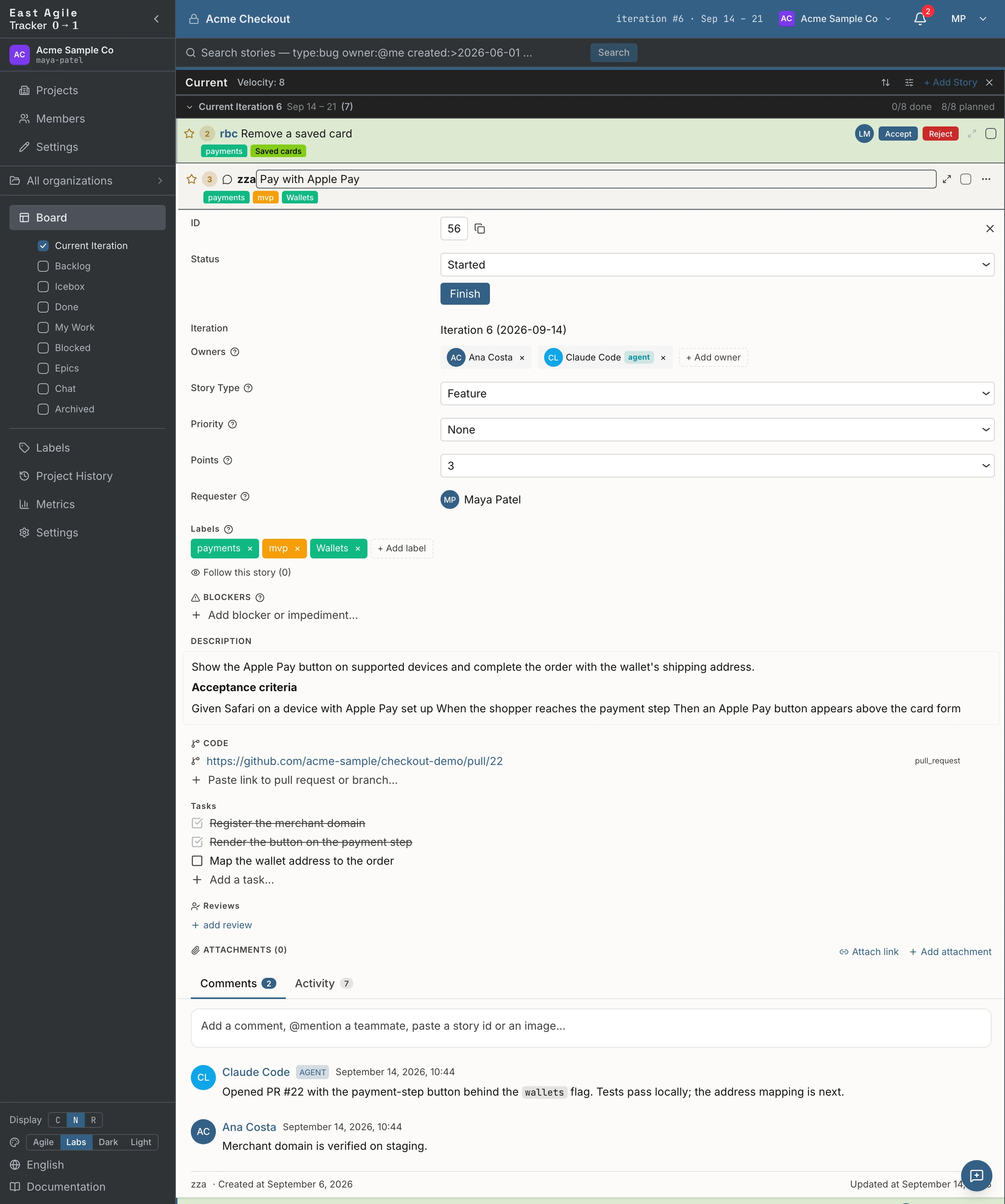
Open the story on its own page (the expand icon) for the 3-dot menu: Archive / Unarchive, Copy story (a link to the clipboard), and Delete.
Press Escape to close the most recently opened story (it remembers the stack — collapse one at a time).
Comments
Section titled “Comments”Up to 20,000 characters, Markdown rendered. Edit and delete your own comments; the audit log keeps the history. @-mention members and the autocomplete picks them up. Each comment takes emoji reactions and has its own permalink.
Writing Markdown
Section titled “Writing Markdown”Descriptions and comments are written in Markdown. The editor has Write and Preview tabs, with a formatting toolbar beside them: bold, italic, strikethrough, inline code, code block, link, bulleted list, numbered list and quote.
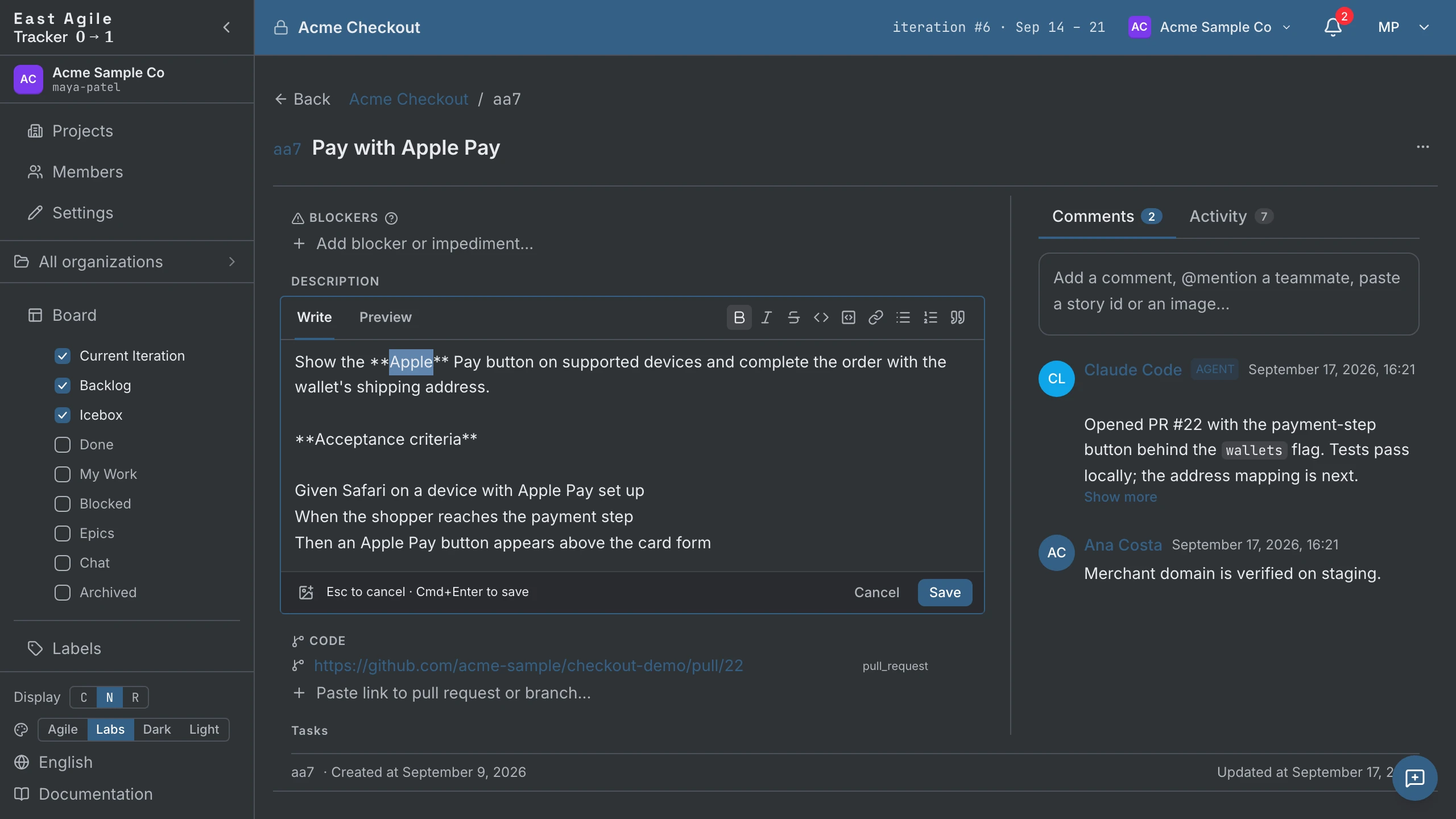
- Select text and press a button to format it. With nothing selected, the button inserts the markup and puts the cursor inside. Press it again to remove the formatting.
- Cmd+B, Cmd+I and Cmd+K (Ctrl on Windows and Linux) apply bold, italic and link. A new link selects its
urlplaceholder, ready for the address. - Lists, quote and code block apply to every selected line.
- Formatting doesn’t save: Cmd/Ctrl+Enter saves a description, Enter posts or saves a comment.
- The toolbar is off on the Preview tab.
Attachments
Section titled “Attachments”Drag a file onto the detail panel, or use the upload button. Caps depend on the kind of file — video 200 MB, PDF, Word, and Excel 25 MB, images, CSV, and text 10 MB; other types are refused. Videos play inline.
Labels
Section titled “Labels”From the Labels page in the sidebar: create labels with names and colors, archive when stale (archived labels disappear from the board but stay searchable). Add labels per story in the detail panel.
Blockers, links, reviews
Section titled “Blockers, links, reviews”- Blockers — A free-text “this is blocked by X” note. Mark resolved/unresolved. Filter the board by
has:blocker. - Links — Seven relationship types: relates to, duplicates, blocks, is blocked by, pull request, branch, and other (the default for any URL that isn’t recognised). Paste a GitHub
/pull/or/tree/URL and the type is auto-detected. Links can be edited after the fact. - Reviews — Assign a reviewer (human or agent) with an optional comment; the reviewer sets the status (pending, approved, rejected).
If enabled in Project Settings, stories get sub-tasks — a checklist inside the story. Check them off as you go.
Story field reference
Section titled “Story field reference”Several fields on the story-detail surface carry a small [?] icon next to their label. Click it in-app to see the same guidance summarised below. Translators ship the in-app copy alongside the rest of the UI; this section is the long-form canonical reference.
The fields are listed roughly in the order they appear in the detail panel; the panel’s tabs are Comments and Activity.
Status
Section titled “Status”The story’s place in the lifecycle: Unstarted → Started → Finished → Delivered → Accepted (or Rejected).
Which of these states counts as done is a project setting: Velocity Done State in the project settings, set to Finished, Delivered or Accepted. A story counts toward velocity once it reaches the chosen state.
A delivered story waits for the product owner to accept or reject it. Rejected is terminal; a separate Restart action puts the story back at Started, and rejecting a story in a past iteration creates a copy at the top of the Backlog instead.
Iteration
Section titled “Iteration”Which iteration the story is planned into. The row is read-only: the server computes it from the story’s position in the Backlog and your velocity, and a story in Current is in the current iteration by definition.
To change it, change the order — drag the story up or down the Backlog, or into Current. That’s what keeps the velocity projection honest.
Owners
Section titled “Owners”Who’s doing the work. Owners can be humans or agents — both render as named participants in the audit log, comment authorship, and metrics. There is no way to disguise an agent owner as a human.
Multiple owners is the visible expression of pair programming (or pair-with-agent). Add the agent that picked the story up and the human reviewing — both names appear on the card.
Owners are not the same as Followers (a separate field on the card). Followers are people who care about the story but aren’t doing the work — typically subscribers to notifications.
Story type
Section titled “Story type”There are four story types:
- Feature — New user-observable value. By default the only type that carries points and counts toward velocity.
- Bug — A defect. Unpointed by default. Defects don’t earn velocity credit, which keeps rework cost visible rather than rewarded.
- Chore — Necessary work with no direct user value (refactors, infra, setup). Unpointed by default.
- Release — A zero-point marker for a milestone. Goes straight from Unstarted to Accepted, anchoring a date for the projection.
A project can turn on Points for bugs and chores in its settings; bugs and chores then take estimates and count toward velocity like features.
Priority
Section titled “Priority”Priority marks how urgent a story is. The values are None, P1 - Urgent, P2 - High, P3 - Medium and P4 - Low, and a new story starts at None.
Set it when you create a story, or later in the detail panel. Any value other than None shows as a small badge on the story card, such as P1. Release stories have no priority.
Search by priority with priority:, for example priority:p1. Importing from a tracker that has its own priority field, such as Jira or Linear, keeps each story’s priority.
Points
Section titled “Points”Relative size of the story. Features get points; bugs, chores, and releases stay at zero — unless the project has turned on Points for bugs and chores.
Estimation is a sizing conversation, not a promise: points describe relative size, not hours.
Three scales ship:
- Fibonacci — 0, 1, 2, 3, 5, 8, 13. The classic XP scale.
- East Agile — 0, 1, 2, 3. A tighter scale. A 3 means a full iteration of one person’s time.
- 3-Point — 1, 2, 3 (Small / Medium / Large). Strict t-shirt sizing.
Requester
Section titled “Requester”Who asked for the story. Usually one person — the product owner, a stakeholder, or an agent acting on someone’s behalf.
The requester is not the owner. The owner is whoever’s doing the work; the requester is whoever cares about the outcome and will (or won’t) accept it. They can be the same person, but they’re separate roles. Recording the requester is what gives you the audit answer to “who asked for this?” six months later.
Release date
Section titled “Release date”A date on a story, meant for Release stories. The board places the release where the date says it falls, and a release whose dependent stories won’t land in time is badged at risk. Search it with release:.
Labels
Section titled “Labels”Colored tags. Stories can carry multiple. Used for cross-cutting categorization — mvp, tech-debt, security, a particular release name — and for board filtering (label:mvp in the search box).
Labels are project-scoped. Manage them on the Labels page in the sidebar. Archive stale labels rather than deleting; the archive keeps history searchable while clearing the board.
Blockers
Section titled “Blockers”Free-text notes describing what’s preventing this story from progressing. Mark resolved when the impediment lifts.
Write a blocker as free text, or paste the link to the story that blocks this one. A story link, either its full URL or its short link, shows as a story block with the story’s type, reference, title and state; click it to open that story. A link to a story you can’t open stays as plain text.
Reviewers
Section titled “Reviewers”Who checks the work before it is accepted — a member or an agent. Each review carries a status (pending, approved, rejected) and an optional comment. Search with reviewer:.
The story’s checklist, if tasks are enabled for the project. Each task has a description and a done state. Imports that carry checklists (GitHub issue bodies, Pivotal, Trello, Shortcut) land here.
Write a task as free text, or paste the link to a story. A story link, either its full URL or its short link, shows as a story block with the story’s type, reference, title and state; click it to open that story. A link to a story you can’t open stays as plain text.
Code links
Section titled “Code links”Pull requests, branches, and any other URL attached to the story, plus the story-to-story relations (blocks, is blocked by, duplicates, relates to). A GitHub PR or branch URL is typed automatically; everything else is other until you say otherwise.
Attachments
Section titled “Attachments”Files on the story. Images get a thumbnail and a lightbox; videos play inline. From the attachment tile you can insert the file into the description or a comment, or copy its Markdown.
Description

Section titled “Description”What the story is and how to recognize it’s done. Markdown.
Acceptance criteria belong here — ideally in Given / When / Then form so they map directly onto acceptance tests:
Given I am signed in as a memberWhen I click "Add a story" in CurrentThen the story is created in state "unstarted"INVEST is the sanity check on whether a story is well-formed:
- Independent — can be released without other stories.
- Negotiable — captures intent, not a frozen spec.
- Valuable — to a user or stakeholder.
- Estimable — the team can size it.
- Small — fits comfortably in an iteration.
- Testable — has acceptance criteria that can be exercised.
Bulk actions
Section titled “Bulk actions”Select multiple stories on the board with the checkbox on each card — shift-click, or Shift+Space with a card focused, selects the range from the last one you ticked. The batch bar that appears offers:
- Copy stories — the selected stories’ links, to the clipboard
- Archive stories
- Delete stories — behind a confirmation
- Deselect all

Selected stories also drag together: pick up one and the whole selection moves.

The board
Section titled “The board”The board is the home screen of each project. Three columns by default:
- Current — Stories in the active iteration, under a single iteration header. Cards appear in iteration time-sequence order with their state visible on each card; the column is not sliced by state — that breaks the iteration time-sequence the team plans in. Closed iterations live in the Done column; the upcoming iterations projected from the Backlog show under Current only when its Show Backlog stories toggle is on.

- Backlog — Strictly ordered queue. The system auto-groups upcoming iterations based on velocity. The product owner owns the top-to-bottom order.
- Icebox — Ideas without a date. Unordered, unestimated.
Configurable panels — sidebar checkboxes
Section titled “Configurable panels — sidebar checkboxes”The sidebar’s Board section lists every preset column with a checkbox: tick a box to show that column, untick to hide. Toggles persist per-project per-user (they’re stored server-side through the project’s preferences endpoint, so they follow you across browsers). The presets are:

- Current Iteration (on by default)
- Backlog (on by default)
- Icebox (on by default)
- Done — Accepted stories, grouped by closed iteration.
- My Work — Stories where you’re an owner.
- Blocked — Stories with unresolved blockers.
- Epics — Epic-level rollups.
- Archived — Stories you’ve archived, hidden everywhere else.
- Chat — A static preview of a project chat column. It shows placeholder messages and sends nothing.
Each column also has a sort control — board order, by state, newest, or oldest. Any sort other than board order turns drag-and-drop off for that column.
Drag the edge between two columns to resize them. This browser keeps the widths for each project, so they survive a reload. Double-click a column’s edge to return it to an even share, or click the reset icon at the right end of the board’s search row (its tooltip reads Reset column widths) to reset every column.
Search
Section titled “Search”The search box at the top-left of the board runs a powerful search across the whole project (not just the stories already on screen). Type a query and press Enter to open a live results column that ranks the matches; refine the query right in the column, or close it when you’re done. Results columns persist across reloads like any other column.

Clicking a label on a story card, or on the Labels page, also opens a search column for that label.
The query language is modelled on GitHub’s issue search — combine free text with qualifiers:
- Free text searches titles, references, and descriptions —
payment crash, or"an exact phrase". - Facets:
type:bug,chore,state:started,label:mvp,epic:Checkout,priority:p1,points:1..5,iteration:42. - People (members and agents,
mention:included):owner:@me,requester:claire,follower:tomas,reviewer:,commenter:,mention:. Each takes a single value. - Dates (a day or a range):
created:2026-05-01..2026-06-01,updated:>2026-06-01,started:,completed:,release:. - Flags:
has:blocker,is:unestimated,is:backlog,is:icebox,is:blocked. - Negate anything with a leading
-:-label:wontfix. - Sort with
sort:created,sort:updated, orsort:state; the default is relevance.
The same query works against the API, so an agent can search exactly the way you do — see the API guide for the full reference.
Current-iteration chip
Section titled “Current-iteration chip”The top bar shows the current iteration number and its date range. It is informational, not a link. The velocity shown on the Current column’s header is a manager-editable inline control: click it to override this iteration’s velocity without changing the project’s strategy.
Iterations
Section titled “Iterations”The system creates iterations automatically based on your length and start day. You don’t need to “open” or “close” them. The very first iteration is created the moment a story first enters Current, behind a confirmation that shows the dates it will get; a project that only has a Backlog has no iterations yet.
To plan ahead, order the Backlog — it projects the upcoming iterations as groups based on your velocity, three or four ahead, and marks a group red if it exceeds your velocity. The groups are a projection, not stored iterations; only the current iteration is filled.
To look back, open the Done column: each past iteration is a collapsible group.
Planning an iteration
Section titled “Planning an iteration”How much work a current iteration holds depends on the auto-plan iterations setting (Project Settings → Project tab, under Velocity & Iterations, on by default).

Auto-plan on (the default) — let velocity size the iteration.
Your current iteration fills to your projected velocity and no further. The point of this mode is that you never have to argue about scope: when you pull a new story into a full iteration, the software makes room for it automatically by moving the lowest-priority story (the bottom one in the Current column) to the top of your Backlog. The new story goes in; the displaced story is now first in line to come back.
Because the bumped story sits at the top of the Backlog, it returns to the iteration on its own as soon as you free up enough points — finish something, remove a story, or re-estimate one smaller, and it slides back in. You can keep reshuffling priorities all day and the iteration stays honest: it only ever commits to as many points as your history says you can finish. If your team delivers 12 points an iteration, you can’t quietly commit 20 — the extra falls to the Backlog where you can see it.
This automates the negotiation you’d otherwise have with a client: “yes, we can add this — but then this lower-priority item moves out to keep the iteration realistic.”

Auto-plan off — commit as much as you want (Scrum style).
Turn auto-plan off when your team deliberately commits to a fixed scope for the iteration regardless of past velocity. Now you can put as many points of stories into the iteration as you like — nothing is moved out automatically. The iteration’s point counter tells you where you stand against your velocity:
- Red — you’ve planned more points than your velocity. A warning that you’ve committed to more than history supports.
- Green — you’ve started, finished, or delivered more points than your velocity. The team is out-pacing its history, so the over-commit is the good kind. Green wins over red: once you’re delivering above velocity, the counter is green even though you also planned above it.
- Neutral — planned points are within your velocity.
Which mode should you use? Auto-plan on is the safer default for client work — it keeps commitments grounded in real throughput. Auto-plan off suits a team that commits to a sprint goal up front and wants the freedom to over- or under-fill on purpose.
Releases
Section titled “Releases”Releases are a story type, not a separate object. Create a release the same way you’d create any story: pick Release as the type, give it a name (e.g., v2.4), and give it a release date. The board places it where the date falls.
Releases skip the Started/Finished/Delivered/Rejected states — they go from Unstarted to Accepted in one step. Accept a release when you ship. Releases appear in the Metrics story-type mix like any other type.
Metrics
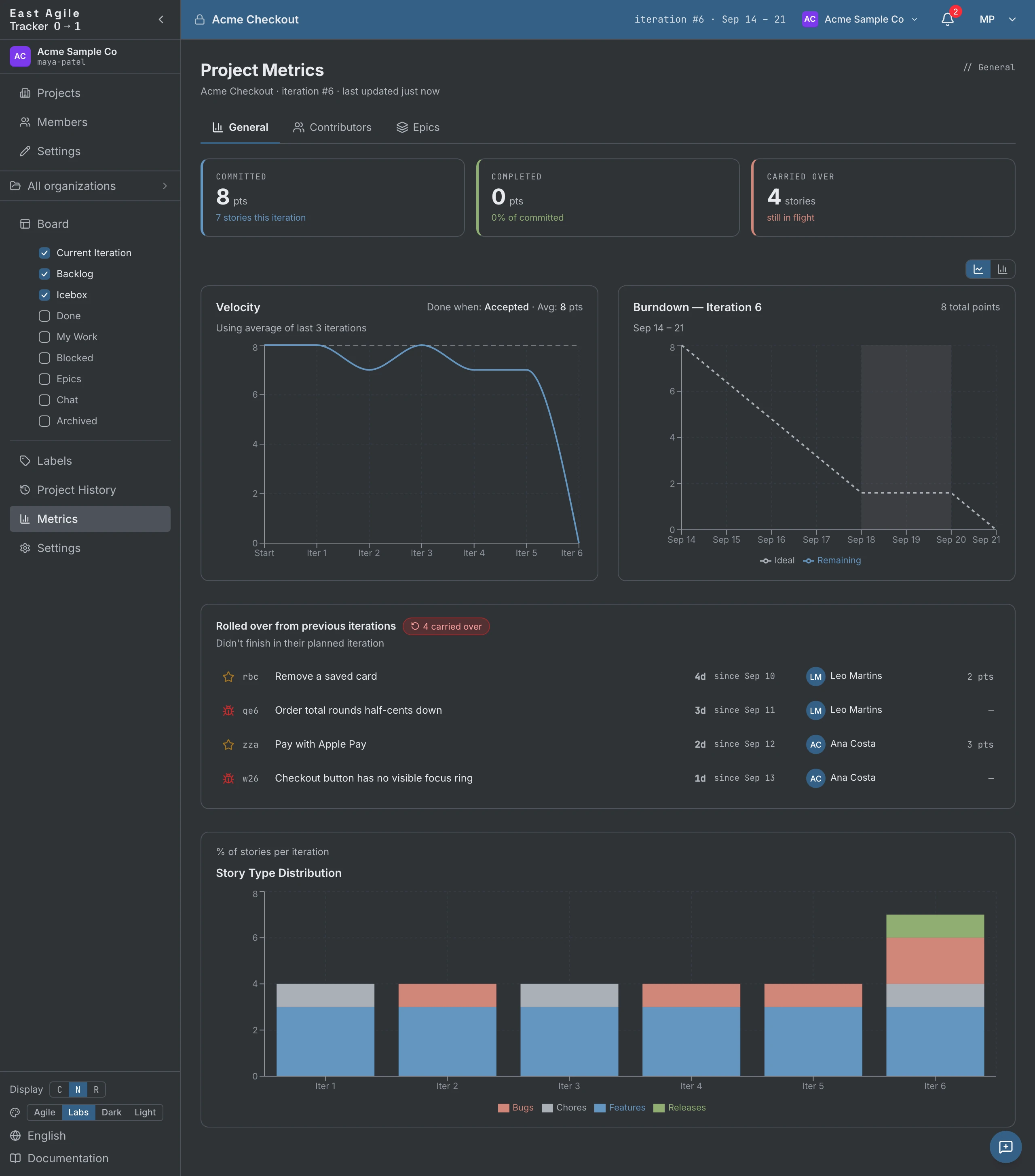
Section titled “Metrics”The Metrics page (top of the project) has three tabs:
- General — Velocity trend, the current iteration’s burndown, the story-type mix per iteration, the Committed / Completed / Carried-over cards, and the list of stories rolled over from earlier iterations (with an aging marker for stories carried more than once).
- Contributors — Points and stories per member or agent, over the last N iterations or all of them, with delivered / accepted / rejected counts and a bar or line chart.
- Epics — Pick an epic to see its burnup (scope vs accepted), throughput per iteration, an on-track / at-risk / stalled health signal, open blockers, and a forecast of the iteration in which it completes.
Who did what, when — filterable by actor, type, and date — is the Project History page, in the sidebar.
Agents
Section titled “Agents”This is the part of the product that sets it apart. An agent is a named teammate — but it’s an AI.
Add an agent to a project
Section titled “Add an agent to a project”Open Project Settings → Agents. Managers can always mint keys; the tab’s creator-roles policy lets a manager open minting to members too.
- Create new agent key.
- Give the agent a name (it will show up as that name in audit logs, comment authorship, and owner avatars).
- Pick a role — viewer (read-only), member (can write), or manager. An agent’s role can never exceed yours, so only a human manager mints a manager-role agent.
- The key is shown once — copy it; we don’t store it retrievably. The prefix is
ea_agent_….
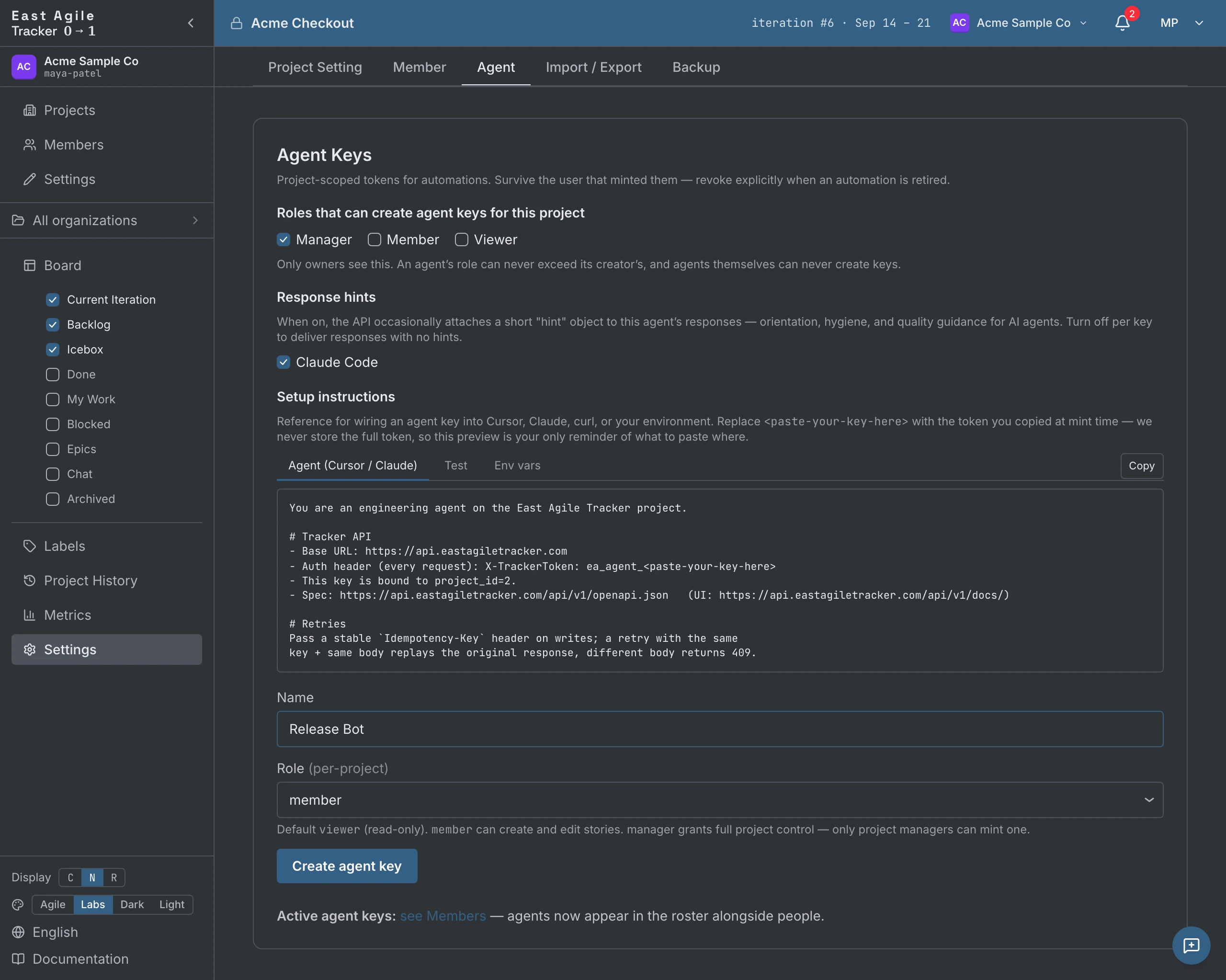
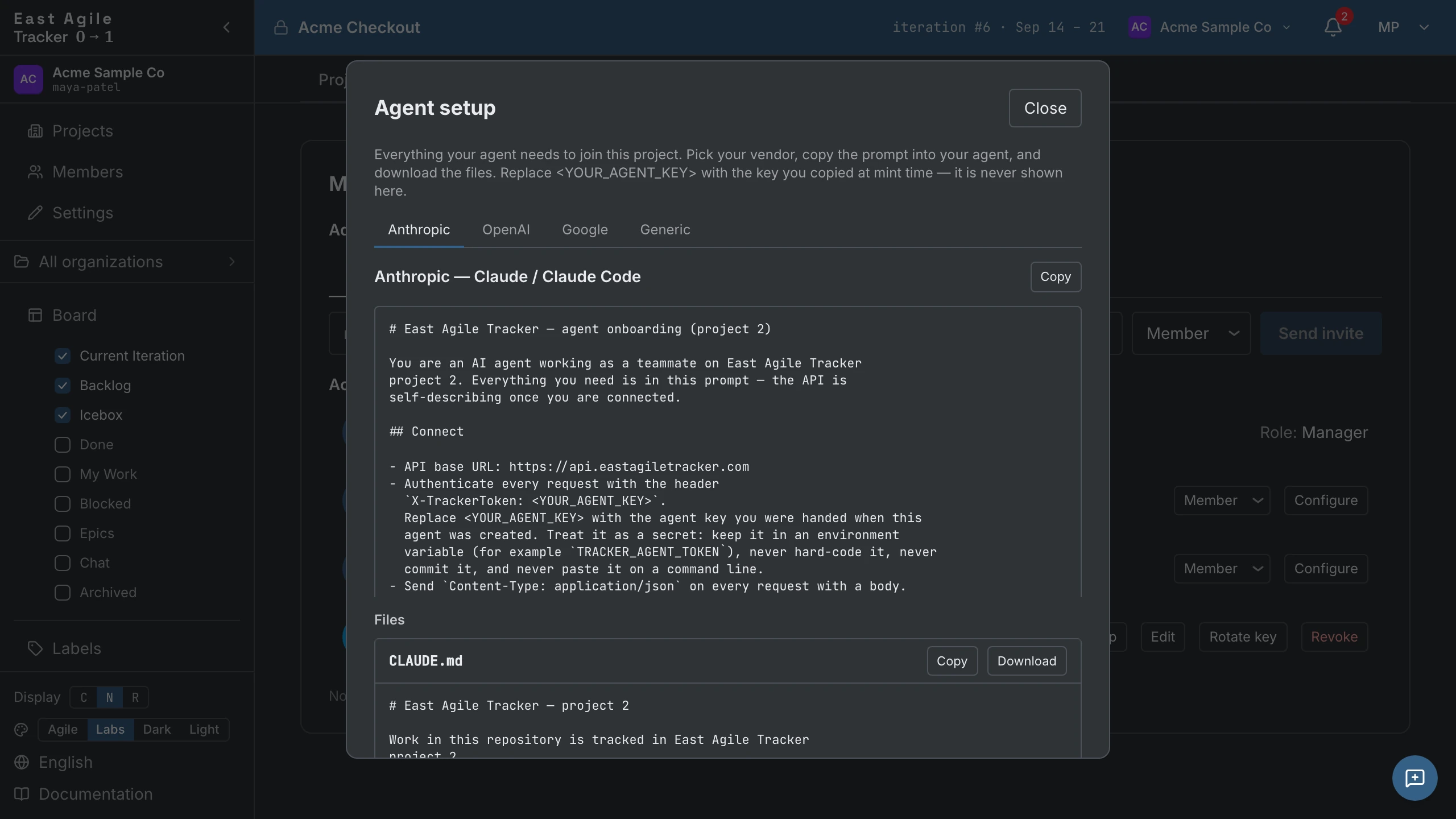
The same tab holds per-key Response hints — short guidance the agent reads back through the API — and the onboarding bundle: ready-made prompts and config files for Anthropic, OpenAI, Google, and generic clients.
What agents can do
Section titled “What agents can do”An agent with member role can do anything a human member can:
- Create, edit, transition, delete stories
- Comment, attach files, add labels, set owners
- Pick itself as owner of a story
- Read activity, follow events
The audit log records every write with the agent’s identity. There is no way to make an agent action look like a human action.
Manage agent keys
Section titled “Manage agent keys”Agents appear in the Members roster of Project Settings alongside the humans, with their role and last-used timestamp. From there you can rotate a key (the old one stops working, the agent keeps its identity and history) or revoke it; the agent loses access immediately. The agent’s past activity stays in the audit log forever.
Use agents with the API
Section titled “Use agents with the API”See API Guide → Agent keys for code examples.
Importing from other trackers
Section titled “Importing from other trackers”If you’re coming from another tool, we have importers for eleven sources. Ten take an exported file; GitHub connects to the repository directly.
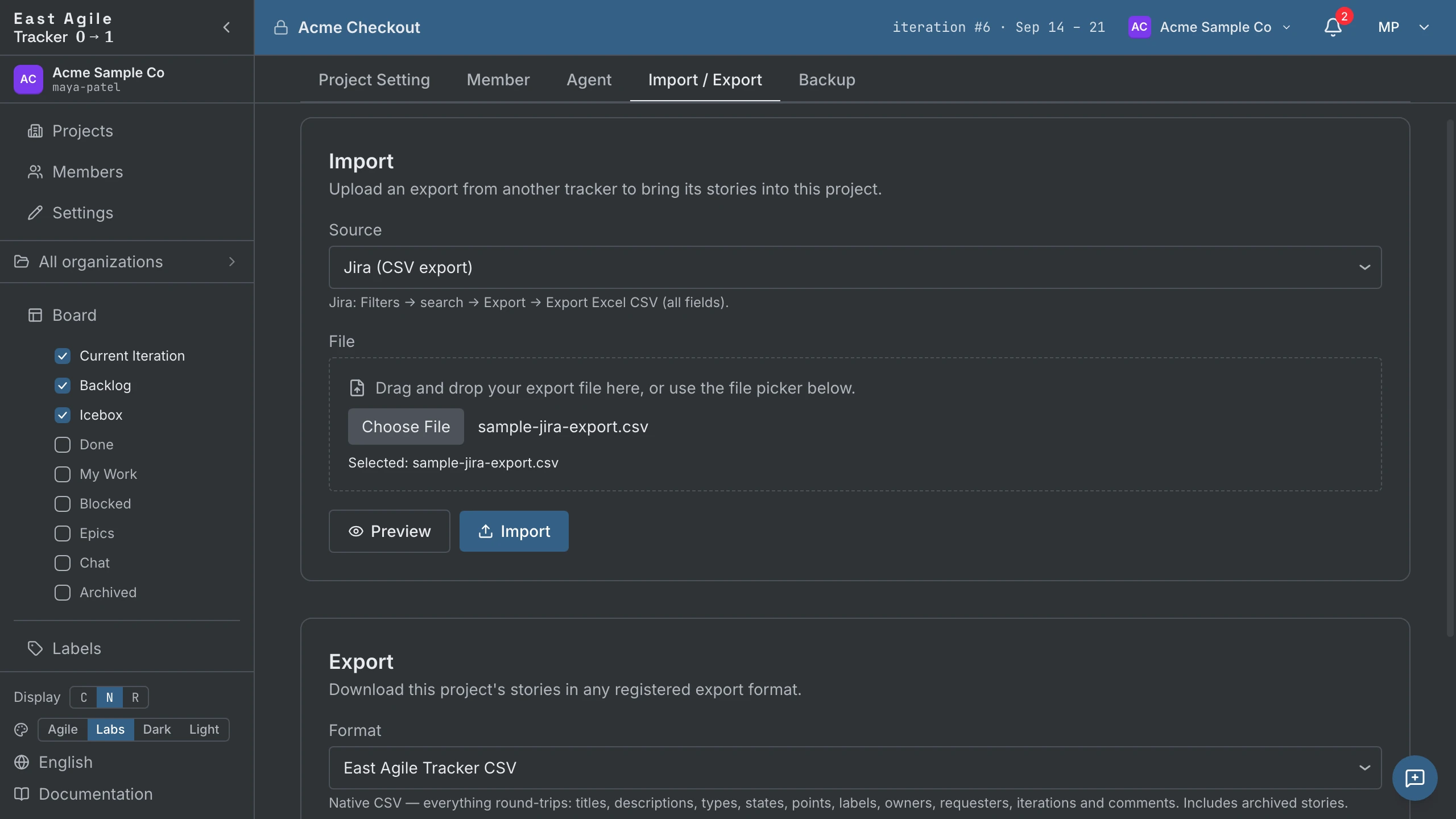
Upload an export file (from Project Settings → Import / Export):
- Pivotal Tracker (CSV)
- Jira (CSV)
- Asana (CSV)
- GitLab (CSV)
- Shortcut (CSV)
- Trello (JSON)
- Linear (CSV)
- Plane (CSV)
- Plane (JSON)
- East Agile Tracker (CSV) — our own export format, so a project exported from one Tracker re-imports cleanly into another.
Or connect a repository:
- GitHub — enter the owner and repository; issues import as stories. Every import authenticates: the fetch runs on GitHub’s GraphQL API, which refuses an unauthenticated request. Leave the personal access token blank and the server substitutes its own shared token, which reads public repositories only and is metered across everyone on the deployment; a private repository, or a deployment with no shared token, needs yours. Pull requests, milestones (as epics), and releases are opt-in checkboxes. See Populate a project from a GitHub repo.
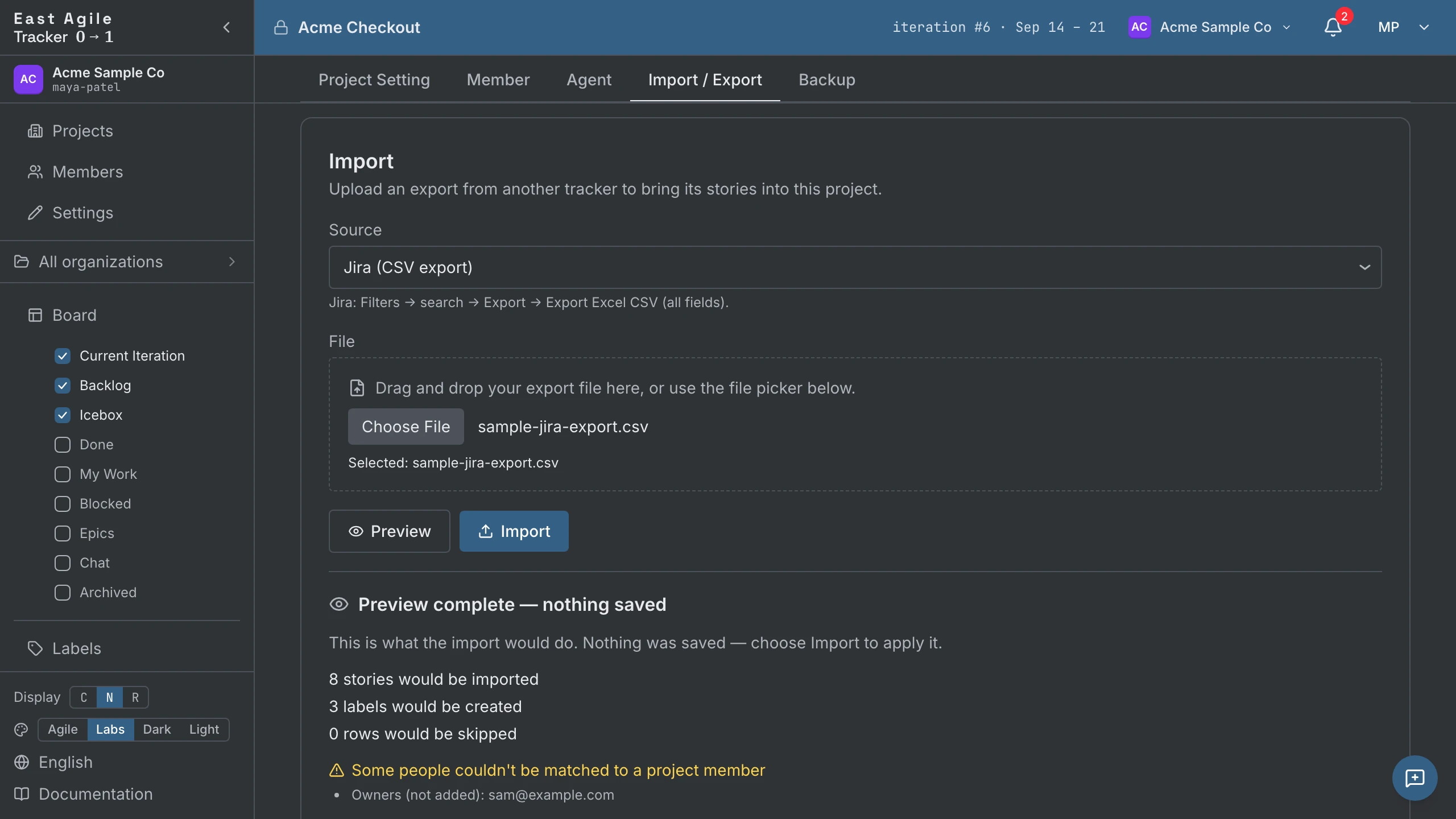
What maps. Stories, labels, and states map for every source. Owners map for the East Agile Tracker format (by email) and for GitHub (assignees become owners, the author becomes the requester); every other source drops them. Comments map for Jira, Plane, Pivotal, Trello, GitHub, and East Agile Tracker. Some sources also bring iterations. (The full per-field, per-source matrix is the behavior contract in the developer docs.)
No interactive create-or-skip prompt. Re-importing the same file is safe: a row that was already imported (matched by its source id) is skipped silently, so a re-run tops up rather than duplicating. If you want to see what an import would do before committing, a dry-run preview parses the whole file and reports the same counts a real import would — imported, skipped, and any unmatched people — but writes nothing.
Two limits: an upload is capped at 10 MiB, and a single import at 5,000 stories. Split a larger migration into batches.
Exporting a project
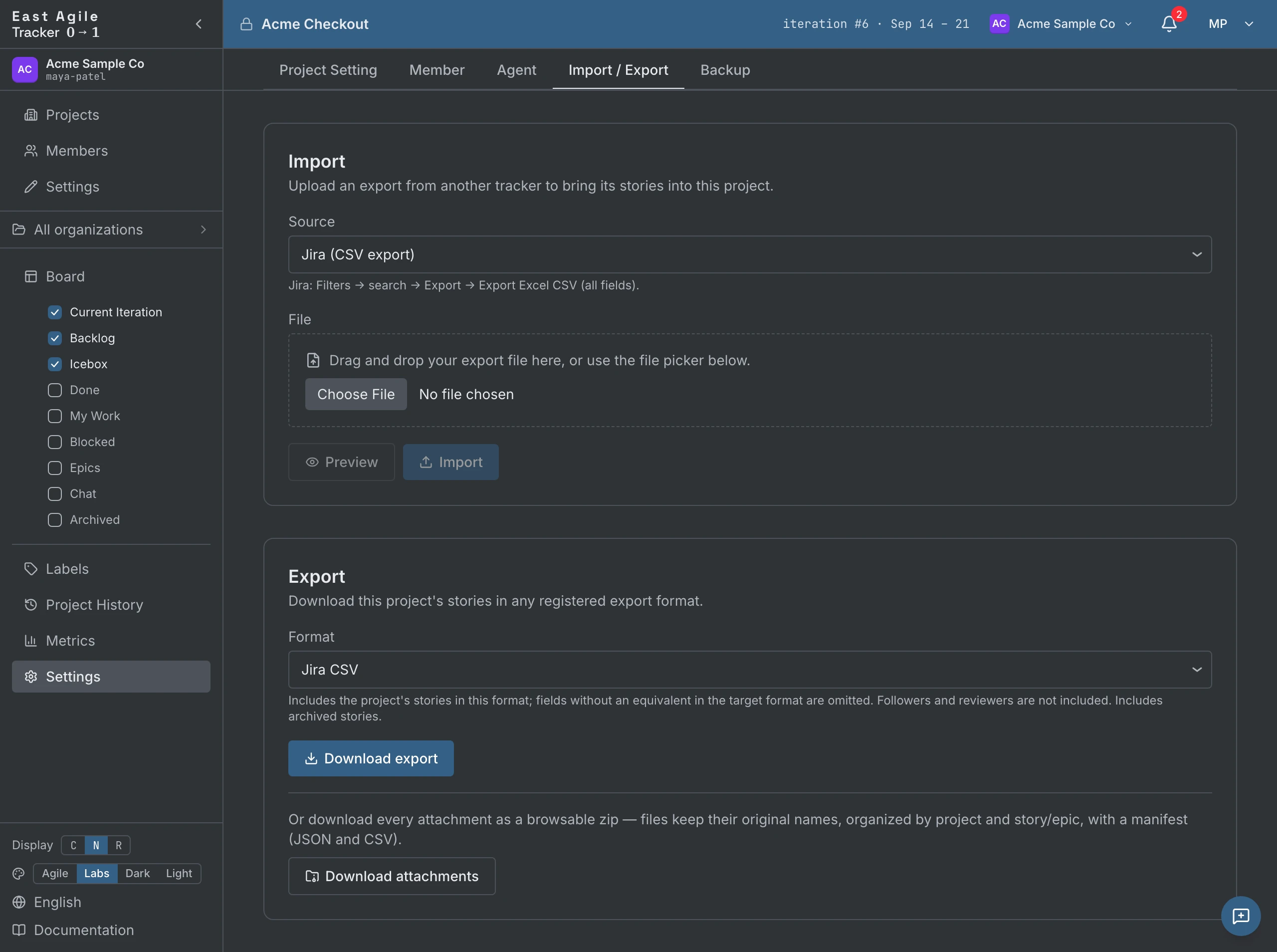
Section titled “Exporting a project”From Project Settings → Import / Export, export the whole project. Exporting is manager-only.
Interchange formats — re-importable into another tool (or back into a Tracker project):
- East Agile Tracker (CSV) — full fidelity. Everything round-trips: titles, descriptions, types, states, points, labels, owners, requesters, followers, iterations, comments, tasks, and blockers. Use this to move a whole project between Trackers.
- Jira, Pivotal Tracker, Shortcut, Asana, GitLab, Linear (CSV), Trello (JSON), and Plane (CSV / JSON) — each speaks the target tool’s own vocabulary, so it’s lossy: fields the target format has no column for are dropped. The format picker names what each one loses (for example, several drop comments; the interchange formats include archived stories).
Document formats — a formatted, ready-to-share report rather than a re-import file:
- PDF and Word — a cover, a summary, and per-iteration story tables. You can limit the report to a date range and choose whether to include Icebox and Backlog stories.
Attachments — download every attachment as a browsable zip, files keeping their original names, organized by story/epic, with a JSON + CSV manifest.
For scripting, the endpoints are GET /projects/{id}/export/formats (list the available formats), GET /projects/{id}/export/{format} (download one), and GET /projects/{id}/export/attachments (the zip).
Themes
Section titled “Themes”Four themes ship. Switch in the sidebar footer (or in Account Settings → Theme):
- Labs — The Pivotal Tracker palette, lovingly preserved. Dark chrome, blue topbar, pastel column gaps. The original, and the default.
- Agile — The marketing landing-page palette. Warm whites, deep-blue brand accent (#1f6f9f), saturated story-type icons. Lead option in the switcher.
- Dark — Pure neutral dark.
- Light — Pure neutral light. Ink on paper.

Your theme persists across sessions.
Language
Section titled “Language”The UI is translated into 27 languages: English, French, German, Spanish, Japanese, Chinese, Korean, Portuguese, Italian, Dutch, Swedish, Danish, Czech, Finnish, Polish, Ukrainian, Russian, Hindi, Vietnamese, Arabic, Hebrew, Sinhala, Tamil, Indonesian, Malay, Filipino, Thai. Switch from the sidebar footer — every screen localizes immediately.
Keyboard shortcuts
Section titled “Keyboard shortcuts”A few that earn their keep:
- Escape — Collapse the most recently opened story, or cancel an inline edit.
- Enter in an inline input — Submit (won’t collapse the row).
- Cmd/Ctrl+Enter — Save the story composer or a description.
- Cmd/Ctrl+B, I, K in a description or comment — Bold, italic, link (Cmd on macOS, Ctrl elsewhere).
- Shift-click or Shift+Space on a card’s checkbox — Range-select stories.
- Space on a focused card — Pick it up; move it with the arrow keys; Space again drops it, Escape cancels. The keyboard equivalent of drag-and-drop.
Self-hosting
Section titled “Self-hosting”East Agile Tracker is closed-source software — no source code is distributed. Self-hosting means downloading a pre-compiled binary for your OS (Linux, macOS, or Windows) and running it on your own infrastructure, with Postgres bundled via a one-command Docker setup. It is not a “clone the repo and build it” release.
A self-hosted install runs in single-organization mode: everyone belongs to one bootstrap organization, and the hosted service’s organization management, organization invitations, ownership transfer, and organization export are not mounted. Project invitations, imports, exports, backups, agents, and everything else on the board work as on the hosted service.
Contact East Agile for self-host binary access and setup instructions.